Export full 240fps slo-mo videos from your iPhone
I needed to export full 240FPS “slo-mo” video from my iPhone recently. Specifically, I wanted to analyze the videos frame-by-frame to time things. It was suprisingly complicated, and the recommended steps on Stack Exchange require exporting to iMovie.
There is a simpler way (which I’ve since shared there).
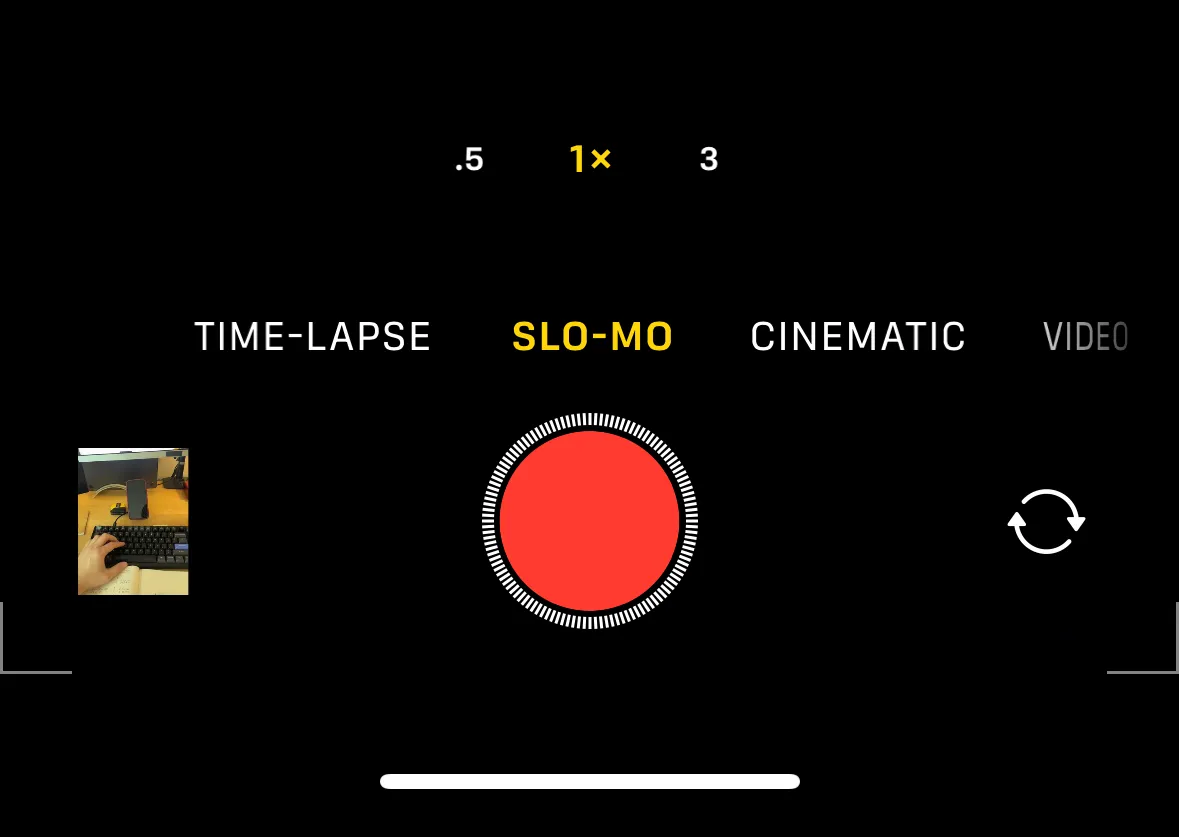
First, remove the default easing
As far as I know, slo-mo iPhone videos are simply 240FPS videos. iOS applies an “easing” effect to the playback by default: it slows down playback in the middle, leaving the beginning and end at normal speed. If you remove this easing, you get an ordinary 240FPS video file, which you can step through frame-by-frame or play at whatever framerate you want. This is documented on support.apple.com.
You can remove this easing on your iPhone to get the regular 240FPS video:
-
In the Photos app on your phone, open the video and tap the Adjust button with the sliders:
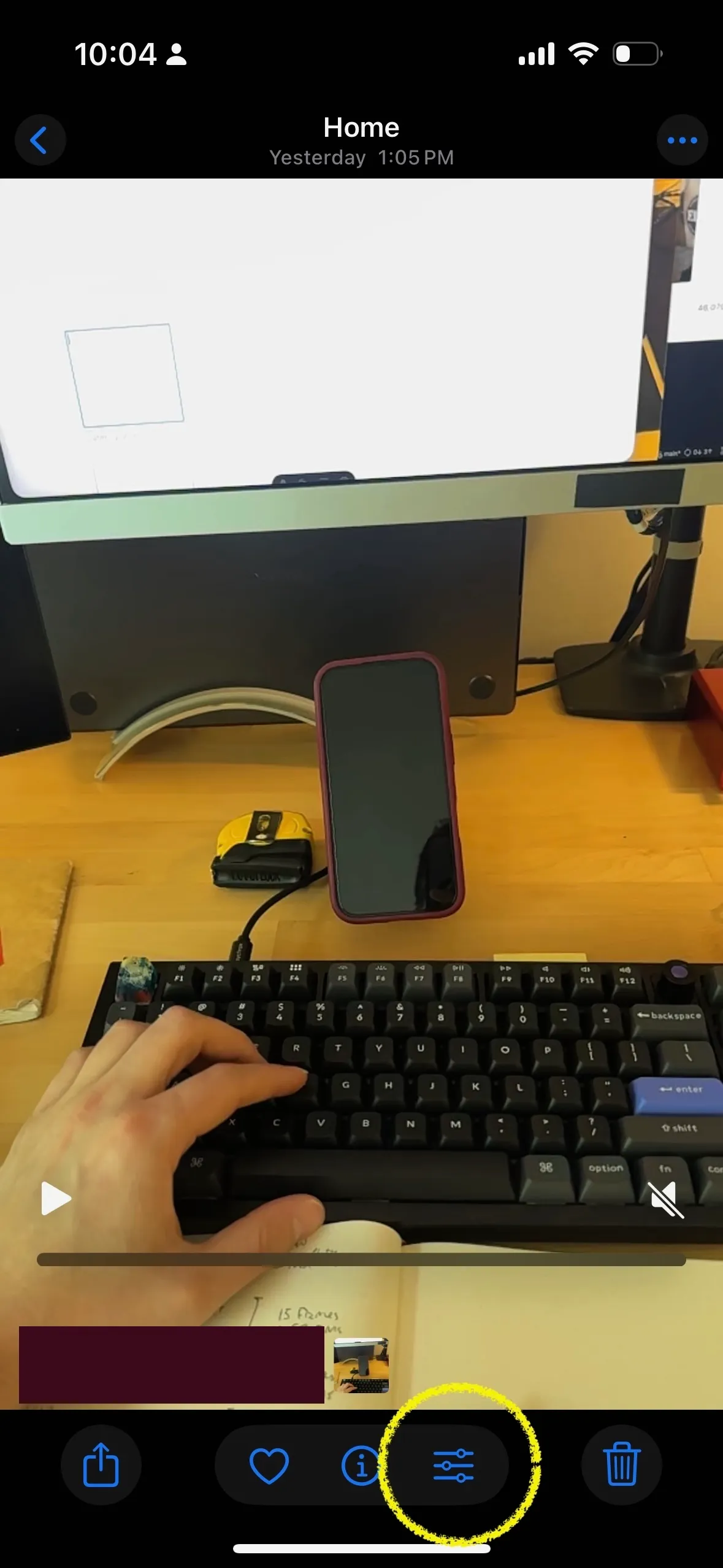
Tap the adjust button -
You’ll notice the easing on the default timeline:
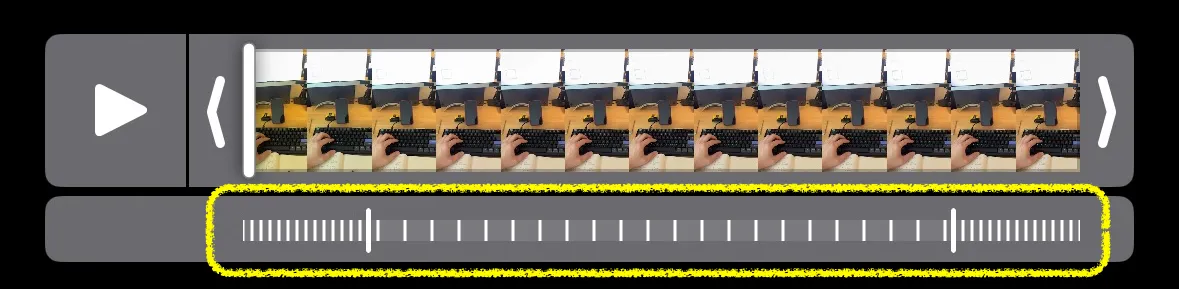
Higher framerates at the edges You can drag the edges of this easing to adjust when it begins and ends, but you can also remove it one step. Tap the speedometer icon in the top-right corner, then tap 100% - 240FPS:
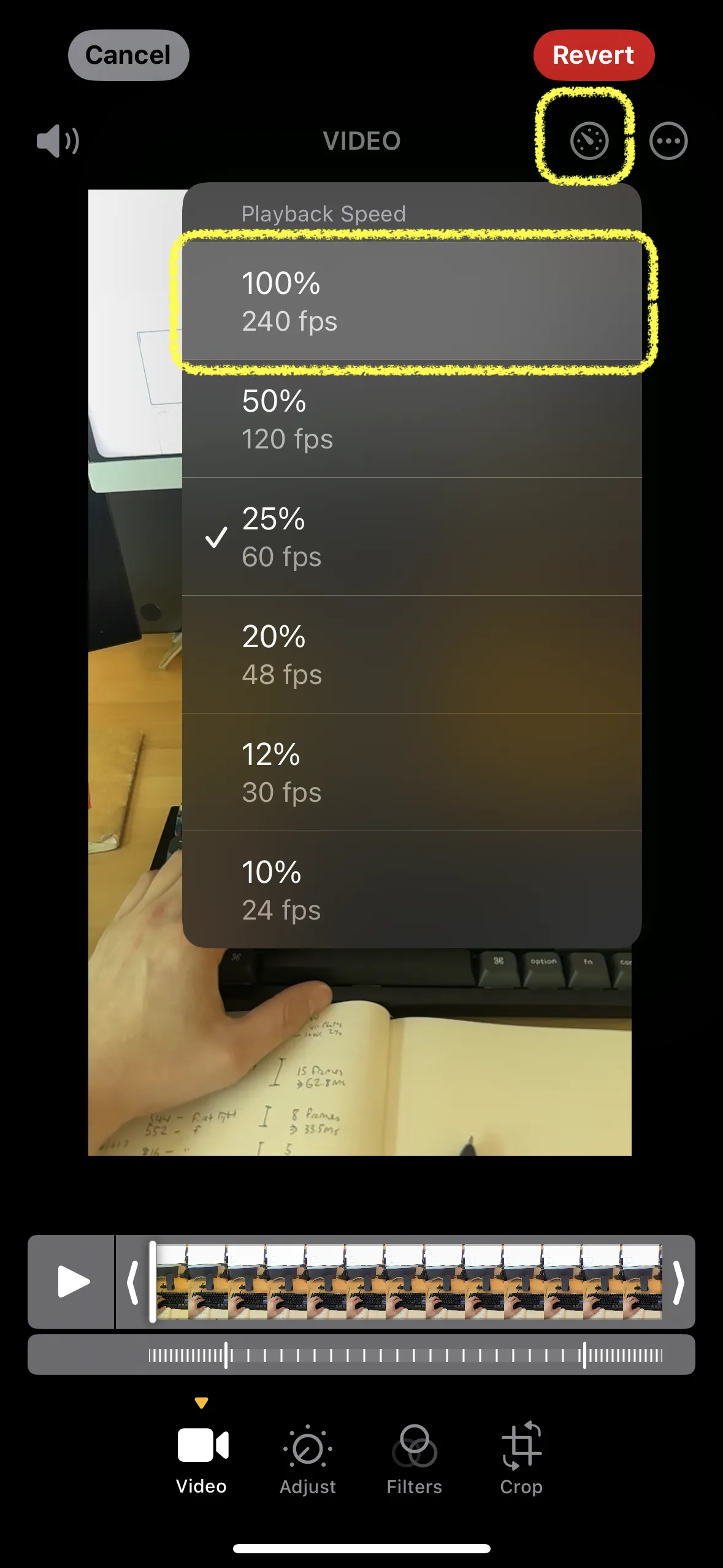
Change the Playback Speed to 100% - 240FPS The framerates on the timeline will disappear:
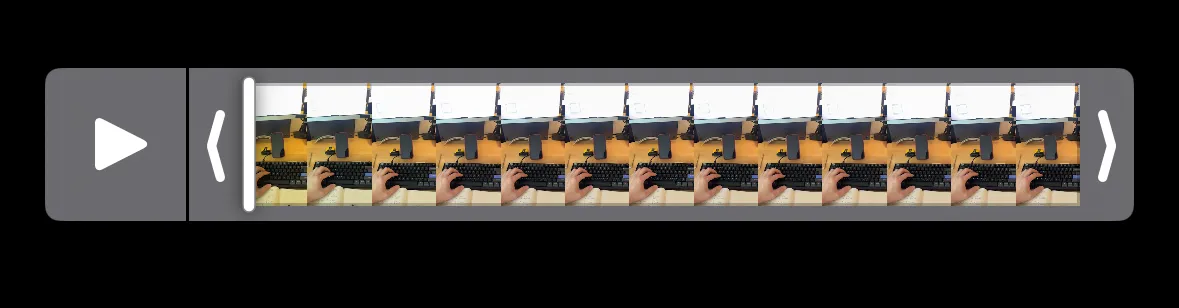
No easing in the new timeline
Awesome! You have a standard 240FPS video. You still need to export it, though.
Second, export it
To actually use the video, you need the file. I find that this can be finicky. The video in Photos on macOS will also be 240FPS, but:
- If you simply drag the video out of the macOS Photos app, it will export at 120FPS (!).
- If you do File > Export > Export 1 Video, it will export at 30FPS (!!).
The 2 methods I found retain 240FPS:
- On your iPhone, send the file via Airdrop to your Mac, or…
- On your Mac, use Image > Edit with > Quicktime Player. You can save a copy of this file wherever.
Strange! You can verify you have the correct framerate by opening the inspector in Quicktime (Window > Show Movie Inspector) and expanding the Video details section:
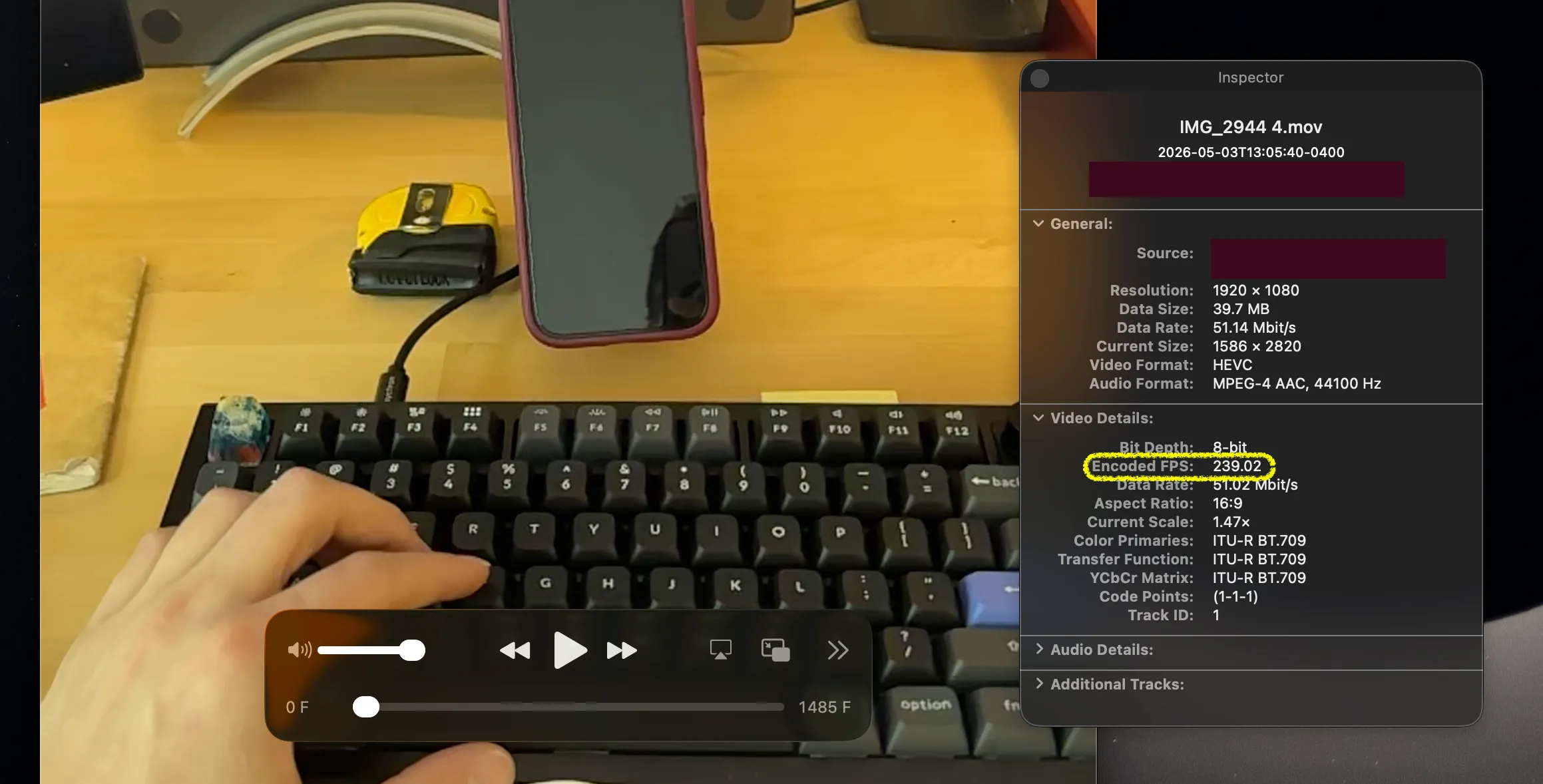
If you see a number like 238.38 or 239.02, all is well. I suspect that is due to slightly variable framerate in the recording.
Done! You have a ~240FPS video file!
Want more random tips I discover while working?
No spam. Just an email for new posts.Appendix: counting frames in Quicktime Player
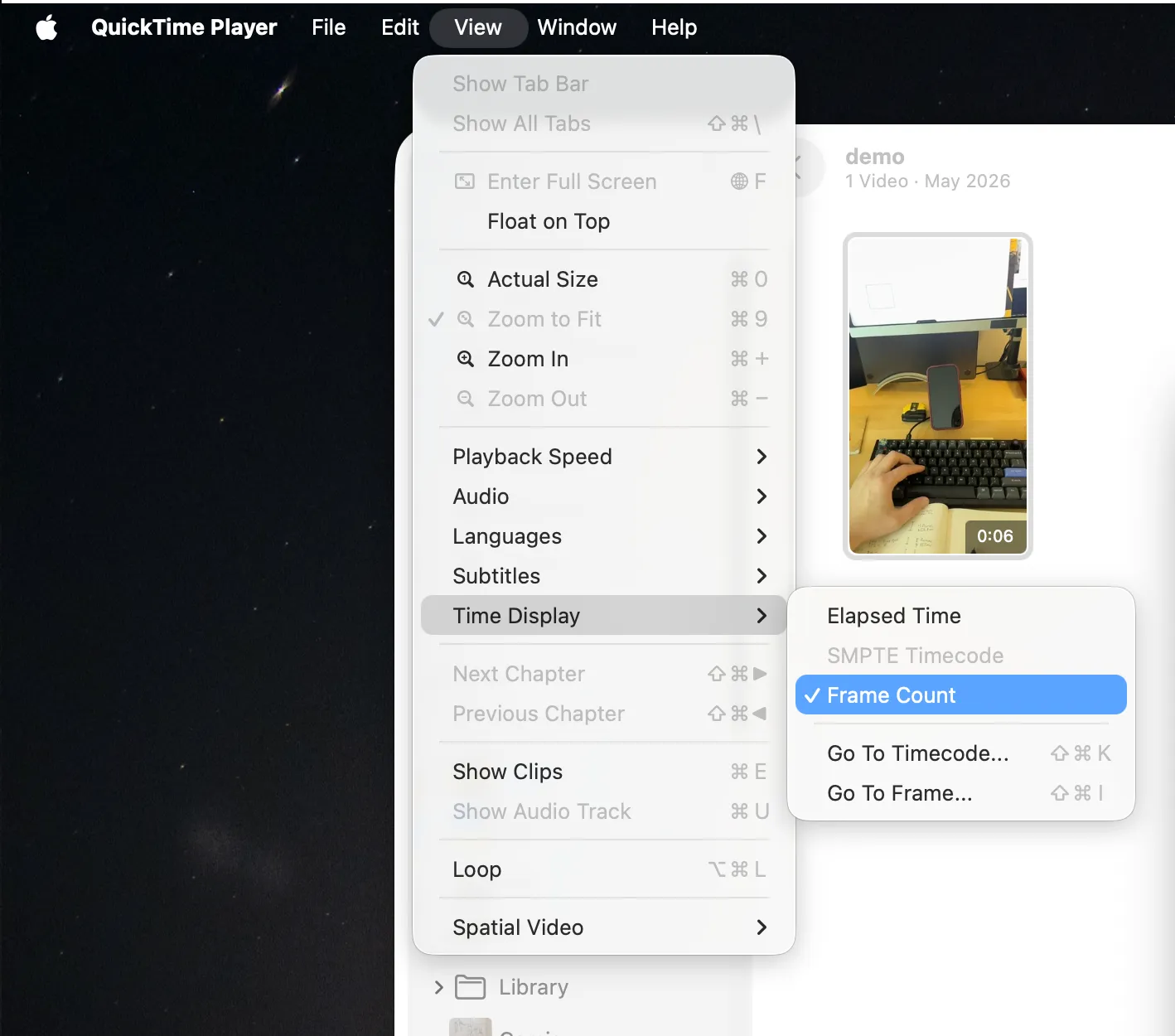
I did all this to estimate keyboard latency by counting frames. This is easier if you have the Quicktime Player show frame count instead of time (View > Time Display > Frame Count):
Then your timeline will show frame numbers instead of elapsed time:
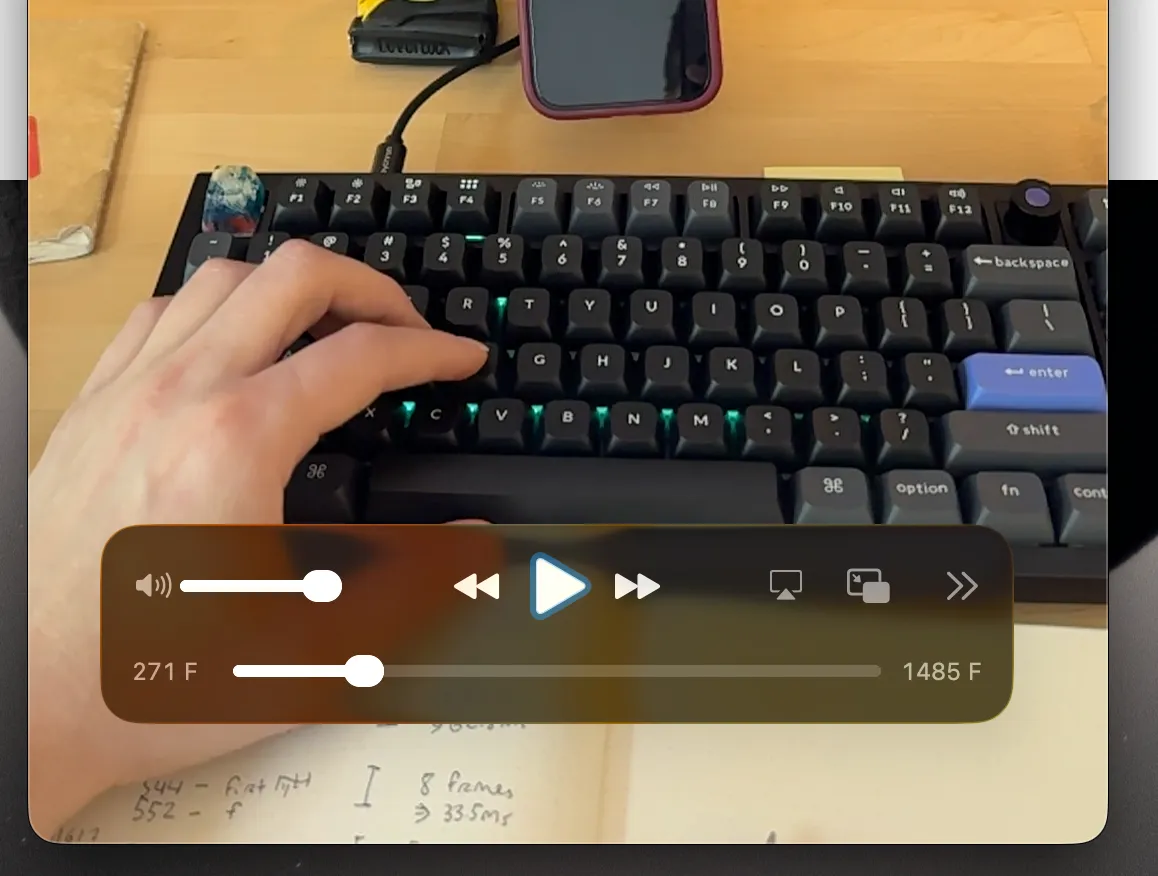
Since the Encoded FPS is not-quite-240, I simply use that Encoded FPS number when estimating duration:
1000ms over s×s over 239.02 frame≈ 4.2 ms/frame
I suspect there is a more accurate way of calculating frame duration, but I also suspect that this estimate is good enough :)